Search This Blog

Wednesday, 17 December 2025

TO SET UNIT OF MEASUREMENT - METRIC/IMPERIAL

Instruction as applicable to Blender Version  3.00 and above.

 In Blender, we can set the dimensions of Rotation, Length, Mass, Time and Temperature.

The main settings we can do is to set Metric or British(Imperial).

Rotation- Degree,Radian

Time -Day, Hour , Minute, Second....

Temperature _Kelvin, Fahrenheit.

Under Metric  we can have: 

Length - Kilometre, Meter, Centimetre ...

Mass -Tonnes, Kilogram, gram ...

Under Imperial  we can have: 

Length - Miles, Feet, Inch ...

Mass -Tonnes, Pound, Ounce ...

To set the Unit, as shown in IMAGE  1 , Click on Scene properties in the Properties panel.


                                                                  IMAGE 1

Then click on Units to get a drop down menu where you can choose  Metric/Imperial and the units under them as shown in IMAGE 2.

       
                                                              IMAGE 2      
                            
                                                              - - 0 O 0 - -                                            


ENABLING MEASUREMENT (DIMENSION)


Instruction as applicable to Blender Version  3.00 and above.

To enable display of object dimensions in Blender, we need to follow the following steps.

1. In IMAGE 1,  we see a plane  object. It is in object mode. Change it to edit mode by pressing Tab key. Press  "A" key to select all objects in the 3 D view port.


                                                            IMAGE 1

2. As shown in IMAGE 2, click on overlay drop down button. 


                                                              IMAGE 2


Then as shown in IMAGE 3, under measurement, tick "Edge length".


                                                              IMAGE  3


3. Now the  edge dimensions are displayed as shown in IMAGE 4.


                                                            IMAGE 4


                                                             - -0 O 0- -


Thursday, 4 July 2024

ROUND EDGES- BEVEL TOOL

Blender version 3.6

To make any edge to be rounded smoothly, we can use the bevel tool in Edit Mode.
Look at the cube in Image 1 where all the edges are sharp, straight edges.

                                                                               Image-1


We shall  apply bevel to the top four edges as shown in Image-2. 

                                                                           Image-2


After the bevel is applied to the selected edges, we shall get a rounded edge as shown in Image-3.

                                                                         Image-3

To apply the bevel, go to Edit mode, select the top four edges as shown in Image-2 and click on the bevel tool icon as shown in Image-4. 

                                                                                 Image-4

A yellow colored handle will appear over the Cube as shown in Image-5.

                                                                         Image-5    

Hold the yellow colored handle by holding down the Left Mouse button and turn it side ways.The Bevel Tool Pop-up window, will appear at the bottom left corner as shown in Image-6, (left side image) and on clicking on its header, the pop-up will open up as shown in Image-6, (right side image).

                                                                       Image-6
 Adjust the width and Number of segments until you get the desired result. You may also change  the Width Type and try other settings. Once you get the desired result, click the mouse with the cursor positioned some where away from the Bevel tool pop-up window, to confirm the settings.

Change to Object mode. If required set the shading to Smooth Shading, by clicking on Object->Smooth Shading. Save the file.

Another object with a round edge is beveled as shown in Image-7.The image is shown in edit mode, to highlight the round edges.


                                                                          Image-7

NOTE:If you want to learn about any feature in Blender, leave a note in the comment section.


Saturday, 29 June 2024

TO REDUCE NUMBER OF VERTICES IN A MESH

Blender version 2.82a or above.

 Look at the number of vertices in the image mesh1.png and mesh3.png.


                                                            mesh1.png

     mesh3.png


To reduce the number of vertices as in mesh3.png from mesh1.png, follow these steps.

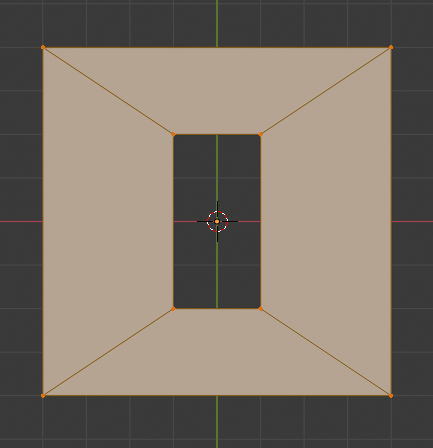
1. Add a plane, go to top view. Select plane and scale it up by pressing S then 4, then 'Enter" key.Change to edit mode, select all the vertices. At the top see the list of mesh options like View,Select,Add,Mesh Vertex, Edge, Face, UV.

Select "Mesh" -> "Clean Up"-> "Dissolve Geometry". In the pop up window at the left bottom corner, gradually reduce the Ratio value to get the number  of vertices as in mesh2.png. Make sure the shape of the plane is not changed while adjusting the Ratio value.  Now the vertices/edges should look as in mesh2.png.


                                                            mesh2.png
 

Next, in Edit mode, select edge select option. Select the edges which you want to remove then click on "Mesh"->"Delete"->"Dissolve Edges" to get a clean mesh as shown in image mesh3.png.

Save the file. 


NOTE:If you want to learn about any feature in Blender, leave a note in the comment section.

Friday, 25 August 2023


TO MIRROR ARMATURE BONES ON X AXIS


1. Assume that we are making a human rig in standing position.
2. Set the view to front view.
3. Create the armature with the center bones along the z axis and the hand and leg bones on the positive side of the x axis.
4.Select the head of the root bone. Position 3D cursor at the head of the root bone pressing Shift+S >"Cursor to selected". Next change the pivot point to 3D cursor.
5. To mirror the bones on the Positive side of x axis to the negative side of x axis, select all bones on positive side of x axis,taking care not to select the central bones. Press Shift+D to duplicate, then Ctrl+m, x , -1 to mirror on the x axis.
6. Alternately, after duplicating the bones, press s, x -1 to mirror on the x axis.

Monday, 26 September 2022

DELTA TRANSFORMS

  Delta Transforms are  transformations that are applied on top of the normal transforms applied using location, rotation and scale transform. Delta Transforms are particularly useful in animations. For example, you can animate an object with the primary transforms then move them around with Delta Transforms.

 As an example, we can animate a cube to move from point A to B.
Let the the initial position(A) be 0,0,0. Set a key frame at frame no 1. Set End frame as 100, move the Timeline cursor to frame 100.Move the Cube to position (B) at 10,0,0 and set a key frame here. When we run the animation,the Cube will move from A to B.

  Now after setting the key frames, if we drag the Cube to position 3,0,0 and then  play the animation, the Cube will once again jump back to position A and move to position B. From 000 to 10,0,0.

 Reset the Cube to position 0,0,0 and save file.

 Now we shall look at Delta Transforms. Delta is a term adapted from Maths, where it means a small change in the existing value of a variable.  

 In the properties window, open the Object Data tab and click on Delta Transform panel. Here we can set the Delta value for Location, Rotation and Scale Transformation.
 
Set the Delta Location value to 4,0,0.  

 Now play the animation. The Cube will start from position 4,0,0 and go upto 14,0,0.

 What we have effectively done is retained the basic animation of the Cube, but shifted the starting point to 4,0,0 and End point to 14,0,0.

 As another example , to understand the use of Delta Transforms, reset Delta Location Value to 0,0,0 and set Delta Rotation value as 45,0,0.

 Now play the animation. The Cube would be rotated by 45 degrees on X axis and move from 0,0,0 to 10,0,0.

 Similarly, if we set the Delta Scale value to 2,2,2 and play the animation, the Cube will move from 0,0,0 t0 10,0,0 with both these additional Delta transforms.

 The next question which arises, is where do I use this Delta Transforms? We shall adddress this query now.

We shall list out a few example cases.

1. Animate a car object to move from A to B. Duplicate the car object and set its Delta Location to position it away from the location of the first object.Animate them. Now both cars will move simultaneously. If you want multiple objects to execute the same animation, this technique can be used.

2. Image a human object standing, facing you. When animated,this object will turn left by 90 degrees.Suppose we duplicate this object, 80 times and make them stand in 8 columns, with 10 object in each column.  When we play the animation, all 80 object will turn left simultaneously. Image how tedious it would be to set key frame for each of the 80 objects to execute this rotation transform !  

3. Let us say, we have 10 ceiling fans in a hall,  turned on. We want to animate all the 10 fans. Delta Transforms can be used here.

4.   Let us say we have 10 Dish Antenna. If we want all 10 to rotate in the same manner, Delta Transform can be used.

5. In a stage set up, suppose we want 10 lamps to swing in  the same manner, we can do use Delta transforms.

Another way we can use delta transforms is to use them directly. An example will clarify this method.

 Select a Cube located at 0,0,0. In the properties panel, set the Delta location value to 5,0,0.Set Timeline cursor at frame 1 in Timeline Editor window.  With the Cube selected in the 3D window, press I to open up the "Insert Key frame Menu" and click on  Delta Location. A key frame will be inserted at Frame 1. Move the Timeline cursor to from 100, which we set as the end frame number, for Delta Location value enter 15,0,0. Select Cube in 3D window and press I and then click on Delta Location to insert a key frame at frame 100. Save file and play animation. The Cube Will move from 5,0,0 to 15,0,0 location.

 If we duplicate the Cube and position them at different X locations, play animation, all the Cube will move 10 units. This way we can animate multiple objects by setting key frames for a single object and making duplicates of the Cube and positioning them at different points.

 Demonstration of the Delta Transforms is shown in the video link given below:

Delta Transforms 

Link to some animations, done using Delta Transforms:

Fighter Jets

Cars 


Tuesday, 6 September 2022

ANIMATION IN BLENDER 2.79


 ANIMATION PART 1 -NOTES

INTRODUCTION - BASIC CONCEPT OF ANIMATION.

Animation is the process of making something appear to move  by showing a series of still images, one after another, each one slightly different from the previous one, creating an  illusion of motion. This is the concept used in movies. When the images are moved at a rapid speed of 24 pictures(frames) per second or more, then the human brain perceives such change as continuous, which is based on the concept of "Persistence of vision".

TECHNICAL DETAILS

FRAMES, FRAMES PER SECOND, DIFFERENT VIDEO STDS –NTSC,PAL ETC.


Each image in animation is called a frame. Normally 24 frames are shown per second (fps). In Blender we set up scenes using the different characters called object, which perform some action. To enhance the quality of the scene, colored back ground, lighting are included. The whole action is displayed on the computer screen. This is captured by the camera, set up inside Blender and converted into still images which when assembled sequentially becomes a video.
A series of videos assembled with proper sound effects becomes a movie. For display on television the American Standard NTSC specifies 30 fps and the Australian Standard PAL follows 25 fps.
A one minute video, will have 60X24=1440 frames, for 24 fps.


TIMELINE EDITOR.


Time line editor is basically used to set and visualize the frame movement, with its control to start, stop and rewind buttons and provision for setting the total number of frames. It is used for setting the key frames.

 PART 1

OBJECTIVE : BASIC ANIMATION -TO MOVE AN OBJECT FROM POINT A TO POINT B AND THEN TO POINT A.

STEPS

1.ADD AN OBJECT TO ANIMATE.


2.SET FRAME RATE AS 24 FPS, TOTAL NO OF KEY FRAMES 240. START FRAME IS 1 AND END FRAME IS 240.

3.SET KEY FRAME FOR THE OBJECT AT POINTS A, B AND  A AGAIN. SAVE FILE.


4. PLAY ANIMATION.

STEP 1 :ADD AN OBJECT TO ANIMATE

To add an object in 3D window, set your cursor in the 3D window and then press Shift+A keys. A pop-up menu will appear. Here select "Mesh" and then "Cube". A Cube will be added at the location where the cursor was last positioned.

Set the view to Front Ortho view, by pressing "1" and then "5", in the Numpad.

To see the x, y, z location coordinates of the cube,  press "N" key while the cursor is still in the 3D window. A  properties panel will appear on the right side where you should be able to see the location coordinates of the Cube. Set it to x=0,y=0, z=0. Let us assume that this will be point A where the Cube shall be located in  our animation.


STEP 2 : SET START AND END KEY FRAMES


The Start and End key frames are set to 1 and 240 by default. The frame Rate per second(fps) is set to 24fps, the default value.


STEP 3:SET KEY FRAMES

Key frames, are set in the 3d Window, key frame is visible in the Time line window. The current location of the cursor, indicated by the vertical green line in the Time line window is the frame number which we want to set as key frame. When a frame is set as key-frame, a small, vertical yellow line will appear along with the green line in the TimeLine Window.

To set a key-frame, SELECT the Cube, by clicking the Right Mouse Button(RMB) on the Cube. An yellow border-line will appear around the Cube. (If you want to deselect the cube,press "A" key). Let the Cube remain be selected. Note that the current location of the Cube is 0,0,0.

To SET KEY FRAME, press  the "I" button and then click on "Location", in the pop-up menu.A key frame is set  for this location of the Cube. This is indicated by the small yellow line, in the Time Line Window.

Save the File, by pressing Ctrl+S. In Blender, you need to save the file, frequently at regular intervals, to save your work.  

Now we need to repeat these steps for the two other location of the Cube at Point B and C.

Now we shall set key frame for point B.
In the Timeline Window, click on the green line using your Left Mouse Button(LMB) and drag it to frame number 120.This value is displayed on  the Current Frame Number button in the Time Line Window. We  can set the Current frame also by entering a value here. This is an alternate method to set current key frame.

Let us position the Cube at x=0,y=0,z=5, by entering these values  for location in the properties panel.

Make sure the Cube is selected, indicated by the yellow border line around the Cube. Click on "I" Button. Select "Location" in the pop-up menu. A small yellow line will be displayed at frame number 80, in the Timeline Window.

Save the File, by pressing Ctrl+S.


In the Timeline Window, click on the green line using your Left Mouse Button(LMB) and drag it to frame number 240.This value is displayed on  the Current Frame Number button in the Time Line Window. We  can set the Current frame by entering a value here. THis is an alternate method to set current key frame.

Let us position the Cube at x=0,y=0,z=0, by entering these values  for location in the properties panel.

Make sure the Cube is selected, indicated by the yellow border line around the Cube. Click on "I" Button. Select "Location" in the pop-up menu.

Save the File.


At this stage, four yellow lines must be displayed in the TimeLine Window at frame 1,120 and 240.In case you want to delete a key frame, select the key frame,with the Cursor positioned within the 3D window, press "Alt+I" key. Save the File.


STEP 4: PLAY ANIMATION

First set the current frame to frame 1 in the Timeline Window. Press Alt+A keys to play the Animation. The Cube must move from location A to B to C  and repeat the cycle.You can also press the > key, which is the play button in the Timeline Window. To stop the animation, press on the Play Button once more, or hit the "Esc" key.

This completes Part 1. Though the instruction may seem to be elaborate, it is meant to assist the first time learner. Once you get a hang of the steps, it is hardly a few minutes job.

Just play around. If some thing goes wrong, badly, start over again ! Nothing to loose.
 
 VIDEO LINK :ANIMATION USING BLENDER 2.79 PART 1 


VIDEO LINK : ANIMATION USING BLENDER 2.79 PART 2


VIDEO LINK : ANIMATION USING BLENDER 2.79 PART 3


VIDEO LINK : ANIMATION USING BLENDER 2.79 PART 4


VIDEO LINK: ANIMATION USING BLENDER 2.79 PART 5 


Thursday, 30 December 2021

SINE WAVES-RED,YELLOW AND BLUE SCRIPT

#THIS SCRIPT WORKS WITH BLENDER 2.8 AND ABOVE.

 import bpy
from math import sin,cos,pi

radius=100
deg=2*pi

#TO DELETE ALL EXISTING OBJECTS
bpy.ops.object.mode_set(mode='OBJECT')
bpy.ops.object.select_by_type(type='MESH')
bpy.ops.object.delete(use_global=False)


for t in range (0,360):
    
    #RED
    z=radius*sin(t*deg/360)
    x=t
    y=0
    bpy.ops.mesh.primitive_cube_add(location=(x,y,z))
    bpy.ops.transform.resize(value=(0.9,0.9,0.9))
    obj_matl=bpy.data.materials.new("obj_clr")
    obj_matl.diffuse_color=(1,0,0,1)
    mesh=bpy.context.object.data
    mesh.materials.clear()
    mesh.materials.append(obj_matl)
    #YELLOW
    z=radius*sin(t*deg/360)
    x=t+120
    y=0
    bpy.ops.mesh.primitive_cube_add(location=(x,y,z))
    bpy.ops.transform.resize(value=(0.9,0.9,0.9))
    obj_matl=bpy.data.materials.new("obj_clr")
    obj_matl.diffuse_color=(1,0.6,0,1)
    mesh=bpy.context.object.data
    mesh.materials.clear()
    mesh.materials.append(obj_matl)
    #BLUE
    z=radius*sin(t*deg/360)
    x=t+240
    y=0
    bpy.ops.mesh.primitive_cube_add(location=(x,y,z))
    bpy.ops.transform.resize(value=(0.9,0.9,0.9))
    obj_matl=bpy.data.materials.new("obj_clr")
    obj_matl.diffuse_color=(0,0,1,1)
    mesh=bpy.context.object.data
    mesh.materials.clear()
    mesh.materials.append(obj_matl)

The wave form generated by the script can be seen by clicking on the link given  below:

SINE WAVE LINK 


Sunday, 26 December 2021

BPY SCRIPT TO ADD 50 CUBES AND ANIMATE THEM

In this script we add 50 cubes at random location, set random color to each cube and set key frames to each cube to animate them.

The number of cubes added can be changed by setting the range value in the first for loop.Total number of frames is set in the beginning by setting the value for the variable total_frames. Key frame interval is adjusted by setting the third variable in the range setting of the second for loop.Here it is set to 10. The diffuse color setting has four values for Red, Green, Blue and Alpha.

import bpy
from math import sin, pi
from random import randint

total_frames=100

# clear meshes in the scene
for obj in bpy.data.objects:
    if obj.type == 'MESH':
        bpy.data.objects.remove(obj)

#CREATE 10 CUBES        
for i in range (50):
    x=randint(-10,10)
    y=randint(-10,10)
    z=randint(-10,10)    
    bpy.ops.mesh.primitive_cube_add( location=(x,y,z))
    cube=bpy.context.object
    # TO ADD NEW MATERIAL TO EACH CUBE
    matl=bpy.data.materials.new("mat_clr")
    matl.diffuse_color = (x*0.6,y*0.3,z*0.1,1)
    mesh=cube.data
    mesh.materials.clear()
    mesh.materials.append(matl)
    
    # SET KEYFRAMES FOR EACH CUBE
    for frame in range(0, total_frames,10):
        bpy.context.scene.frame_set(frame)
        x=randint(-10,10)
        y=randint(-10,10)
        z=randint(-10,10)

        cube.location=(x,y,z)
        cube.keyframe_insert(data_path='location')


A link to the rendered video file is given below:

https://drive.google.com/file/d/1ZSFBqbky9fEUKng0ZanPFgLFlcWgkLO1/view?usp=sharing


Tuesday, 21 December 2021

BPY SCRIPT TO ADD MULTIPLE CUBES IN CIRCLES

This script adds multiple Cubes in concentric circles

-----------------------------------------------------------------------------------------------------------------------------
import bpy
import csv
from math import sin,cos,pi

d =pi/180 # FORMULA TO CHANGE RADIAN TO DEGREE
i=0 #  LOOP COUNTER


radius=4*1.1
x=0
y=0
z=0


for i in range (12):
  x=radius*sin(30*i*d)
  y=0
  z=radius*cos(30*i*d)
  bpy.ops.mesh.primitive_cube_add(radius=1, view_align=False, enter_editmode=False, location=(x,y,z))
 
radius+=5

for i in range (24):
  x=radius*sin(15*i*d)
  y=0
  z=radius*cos(15*i*d)
  bpy.ops.mesh.primitive_cube_add(radius=1, view_align=False, enter_editmode=False, location=(x,y,z))
radius+=5

for i in range (48):
  x=radius*sin(7.5*i*d)
  y=0
  z=radius*cos(7.5*i*d)
  bpy.ops.mesh.primitive_cube_add(radius=1, view_align=False, enter_editmode=False, location=(x,y,z))
radius+=5

for i in range (96):
  x=radius*sin(3.75*i*d)
  y=0
  z=radius*cos(3.75*i*d)
  bpy.ops.mesh.primitive_cube_add(radius=1, view_align=False, enter_editmode=False, location=(x,y,z))
radius+=5

-----------------------------------------------------------------------------------------------------------------------------


BPY SCRIPT TO ADD MULTIPLE CUBES

This script must have a cube object to start with. This object is duplicated and assigned random material.

-------------------------------------------------------------------------------------------------------------------------------------------------------
import bpy
from random import randint
import random

number=100


#TO DELETE ALL EXISTING OBJECTS

bpy.ops.object.select_by_type(type='MESH')
bpy.ops.object.delete(use_global=False)

#TO ADD CAMERA
bpy.ops.object.camera_add(view_align=True, location=(0,-45,0), rotation=(1.5708,0,0))
bpy.ops.transform.resize(value=(9.42627, 9.42627, 9.42627))


#TO ADD BG PLANE
bpy.ops.mesh.primitive_plane_add( location=(0,10,0))
bpy.ops.transform.resize(value=(10, 10, 10))
bpy.ops.transform.rotate(value=-1.55203, axis=(-1, 0,0))
bpy.ops.transform.resize(value=(2,2,2))

#TO ADD MATERIAL TO PLANE
obj_matl=bpy.data.materials.new("obj_clr")
obj_matl.diffuse_color=(0,0.9,0.8)
mesh=bpy.context.object.data
mesh.materials.clear()
mesh.materials.append(obj_matl)

#TO CREATE MULTIPLE TORUS AND ASSIGN MATERIAL
for i in range(0,number):
    x=randint(-10,10)
    y=randint(-5,5)
    z=randint(-10,10)
    p=randint(1,10)
    bpy.ops.mesh.primitive_cube_add(location=(x,y,z))
    bpy.ops.transform.resize(value=(p*0.1,p*0.1,p*0.1))
    bpy.ops.transform.rotate(value=1.5708, axis=(1, 1, 0))
    p=randint(0,9)
    #print(p)
    obj_matl=bpy.data.materials.new("obj_clr")
    obj_matl.diffuse_color=(0.8,p*0.3,0)
    mesh=bpy.context.object.data
    mesh.materials.clear()
    mesh.materials.append(obj_matl)

--------------------------------------------------------------------------------------------------------------------------------

Monday, 20 December 2021

BPY SCRIPT TO DRAW A SPIRAL

The script will draw a spiral using the cube object which is repeatedly positioned along a spiral path. The spiral is visible in the Top ortho view(7).

-----------------------------------------------------------------------------------------------------------------------------

import bpy
from math import sin,cos,pi

bigdeg=pi*2
smalldeg=pi/100
radius=2
for i in range(0,500):
    x=radius*sin(smalldeg*i)
    y=radius*cos(smalldeg*i)
    z=0
    bpy.ops.mesh.primitive_cube_add(location=(x,y,z))
    bpy.ops.transform.resize(value=(1,1,1))
    mat_red=bpy.data.materials.new("red")
    mat_red.diffuse_color=(0.8, 0, 0)
    mesh=bpy.context.object.data
    mesh.materials.clear()
    mesh.materials.append(mat_red)
    radius +=.07
 
-----------------------------------------------------------------------------------------------------------------------------


BPY SCRIPT TO ADD MATERIAL TO AN EXISTING OBJECT.

To run this script open blender, add a cube object and select it.Copy and paste these codes into you text editor and run it to add a material to the cube. Here Red material(color) is added to the Cube.

-------------------------------------------------------------------------------------------------------------------------------

 import bpy

mat_red=bpy.data.materials.new("red")

mat_red.diffuse_color=(0.8, 0, 0)

mesh=bpy.context.object.data

mesh.materials.clear()

mesh.materials.append(mat_red)

-------------------------------------------------------------------------------------------------------------------------------

BPY SCRIPT TO POSITION AN OBJECT AT RANDOM LOCATION.

 The script below positions the monkey object at random position between _20 and +20 units along the X and Y axis. Along Z axis the location varies between -2 and +2 units.

----------------------------------------------------------------------------------------------------------------------------

'''POSITIONS MONKEY OBJECT AT RANDOM LOCATIONS BETWEEN -20 AND +20 UNITS ALONG X & Y AXIS, -2 TO +2 UNITS ALONG Z AXIS '''

import bpy

bpy.ops.object.select_all(action="SELECT")
bpy.ops.object.delete(use_global=False)


from random import randint
number=200
for i in range(0,number):
    x=randint(-20,20)
    y=randint(-20,20)    
    z=randint(-2,2)
    bpy.ops.mesh.primitive_monkey_add(location=(x,y,z))

----------------------------------------------------------------------------------------------------------------------------
  

Saturday, 18 September 2021

BRIDGE EDGE LOOPS


 Let us say we want to add  faces between the two edge loops in the gear shown in image 1 to get a final output as shown in image 2. We can use the Bridge Edge loops option to get this result.

STEPS
1. In Image -1, select the gear and go to edit mode. Set selection to Edge selection mode. Select an edge on one of the circular edge. Then on the 3D header, click on "Select" and then click on "Edge Loop". The complete circular edge will be selected.


                                                                Image-1

 
2. Holding Shift key down, click on an edge on the second circular edge, Click on "Select" and then click on "Edge Loop". Now both the circular edges would be selected.
3. Now on 3D header click on "Mesh" and then click on "Edge" and select "Bridge Edge Loop" in the popup menu. Now faces will be added between the two circular edges as shown in Image -2.


                                                                Image -2

 
4. Note this option  works only  if the two edges are part of a single object.

Thursday, 16 September 2021

DECIMATE MODIFIER

  Let us say we created a mesh object, but ended up with a lot more number of vertices than you think is the optimal number. To maintain the overall shape and still reduce the vertex count, decimate modifier can be used. The way to use it is explained below:

  Add a Monkey object and change to edit mode. In the info editor header the number of vertices is shown as 507. Change to solid mode. Having the monkey object selected, go to Properties Editor and click on the Modifier icon(Spanner), then click on Add modifier button.  In the drop down menu under "Generate" click on "Decimate". Under the "Collapse-Un-Subdivide-Planar" buttons,  "Ratio    1.0000" is visible  which is a slider control. Click LMB and drag to change the value from 1.0000 to say 0.700. Next click on Apply button. The number of vertices would have reduced to 360.

  As you reduce the ratio value, the vertex count will reduce, but beyond a point the details of the mesh shape will tend to be lost.


Tuesday, 14 September 2021

TO ANIMATE THE COLOR (DIFFUSE) SETTING OF THE CUBE


Blender 2.79b
Open a new Blender file with the default objects - A Cube, Camera and lamp.Set up the objects as per details given below.
Settings:

1. Cube- location 0,0,0, rotation to 0,0,0.
2. Camera- location, 7.5,-6.5,5.5 ,rotation 65,0,45.
3. Lamp- location  4,1,6 , rotation  40,0,110. on the  Properties Editor window set lamp  energy to 10 and   diffuse (RGB) value to 1,1,1.
4. View - Camera view by pressing 0 on the Numpad.
5. Viewport shading - Rendered - In the 3D window header.
6. Time line editor window-Set cursor (green line) at frame number 1. End frame to 100.

In 3D window select the Cube, then in  Properties Editor window,click on Material Properties icon, and then, in the Diffuse panel, click LMB on the color band which opens up a color selection wheel. Set the RGB value to 0,1,0.Click RMB a popup  menu will appear. Click on Insert keyframe. An yellow line appears at frame one indicating that a key frame is inserted. Now move the cursor to frame 100. Change the Diffuse color setting  to 0,0,1. Click RMB on the color band,in the popup menu , click on insert keyframe, a key frame will be inserted at frame 100. Now save the file.Position the cursor at frame number 1.

On the info Editor header, Click on "Render" and then click on "Render Animation". The animation will  be rendered. Once the rendering is done, click on "Render" once again and click on Play Animation. The light color of the Lamp will change from Red to Blue, as the cursor moves from frame 1 to 100.

 This effect will be visible with the color of the cube  changing from Green to Blue  due to the diffuse color being animated.

TO ANIMATE THE COLOR SETTING OF A LAMP

 TO ANIMATE THE COLOR SETTING OF A LAMP

Blender 2.79b
Open a new Blender file with the default objects - A Cube, Camera and lamp.Set up the objects as per details given below.
Settings:

1. Cube- location 0,0,0, rotation to 0,0,0.
2. Camera- location, 7.5,-6.5,5.5 ,rotation 65,0,45.
3. Lamp- location  4,1,6 , rotation  40,0,110. on the  Properties Editor window set lamp  energy to 10 and   diffuse (RGB) value to 1,0,0.
4. View - Camera view by pressing 0 on the Numpad.
5. Viewport shading - Rendered - In the 3D window header.
6. Time line editor window-Set cursor (green line) at frame number 1. End frame to 100.


In 3D window select the Lamp, then in  Properties Editor window,click on the Lamp icon, and then, below the Point lamp button, click RMB on the Red color band which opens up a pop-up menu. Click on Insert keyframe. An yellow line appears at frame one indicating that a key frame is inserted. Now move the cursor to frame 100. Change the color setting of the lamp to 0,0,1. Click RMB on the color band,in the popup menu , click on insert keyframe, a key frame will be inserted at frame 100. Now save the file.Position the cursor at frame number 1.

On the info Editor header, Click on "Render" and then click on "Render Animation". The animation will  be rendered. Once the rendering is done, click on "Render" once again and click on Play Animation. The light color of the Lamp will change from Red to Blue, as the cursor moves from frame 1 to 100.
This effect will be visible with the color of the cube  changing from Red to Blue due to animation of color setting of the Lamp.


Friday, 27 August 2021

ANIMATE ANYTHING IN BLENDER

 ANIMATE ANYTHING IN BLENDER


 While you animate the normal parameters associated with an object with Blender like its location, rotation and scale, have you ever wondered whether it would be possible to animate other parameters, which are in plenty in Blender, like the color of the material, the texture applied, the brightness and color of the lamp, the alpha settings or  the shape of a mesh ? 

 The big answer is YES. Practically almost all parameters in Blender can be animated. You want to know how? Just get in touch, or keep watching for my next post.

Monday, 26 July 2021

QUERY ON BLENDER BASICS

 1. Do you have any query on Blender Basics ? Do you want want  to know how to do some thing in Blender ?

Send a mail to iblnd300@gmail.com.


2. We also conduct online classes on Blender Basics. Get in touch for more details.

TO SET UNIT OF MEASUREMENT - METRIC/IMPERIAL

Instruction as applicable to Blender Version  3.00 and above.  In Blender, we can set the dimensions of Rotation, Length, Mass, Time and Tem...